PUBG Mobile Lite Controls
Fire, ADS, peek, gyroscope, and 2–5 finger HUD layouts in standard PUBG Mobile language.
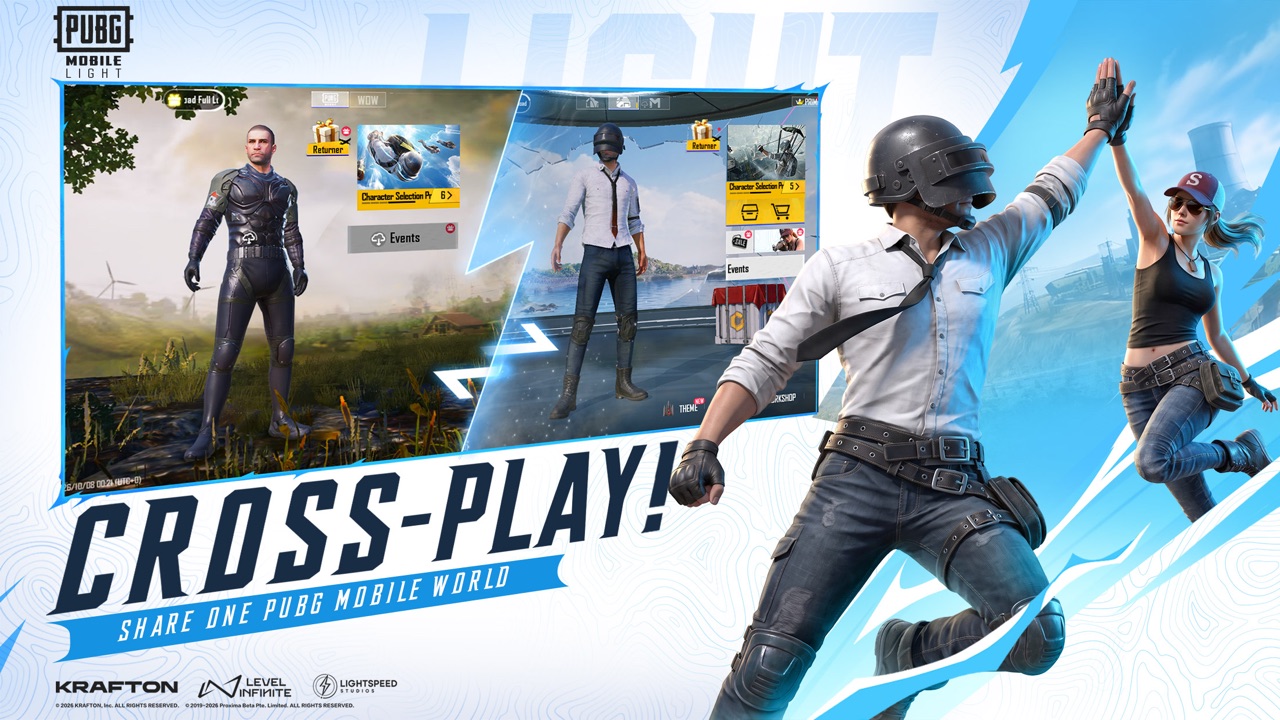
PUBG Mobile Lite uses the same mobile battle royale control language as the standard app. Storefronts list the 2026 client as PUBG MOBILE LIGHT; this wiki says PUBG Mobile Lite. Lightspeed Studios is cutting install size, not inventing a new finger ballet. Until the launch HUD is in your region, treat every layout note below as standard PUBG Mobile advice you can copy the day the listing installs. This page does not publish fake pixel coordinates, dummy screenshots with numbered arrows, or a “LIGHT-only claw” that nobody has shipped.
The game is upcoming (mid-November 2026 in official posts; the App Store listing currently shows 12 November 2026). You can still set up muscle memory in the full client, then bring it across. Account sharing means the same player is behind the thumbs. See getting started for login and cross-play for mixed lobbies.
Fire, ADS, peek, and the rest of the HUD
The fire button shoots your equipped weapon. A separate ADS / scope button raises sights. Many players bind a second fire button near the right thumb so they can shoot while the left thumb strafes. Peek (lean left / lean right) slides your camera around a doorframe without exposing the whole body. Peek-and-fire variants shoot while leaned. Crouch, prone, and jump are movement, not cosmetics; prone is for angles and for becoming a rug in the open.
Sprint, peek, reload, weapon swap, hold breath (on eligible scopes), throwables, healing, inventory, and the map are the rest of the classic HUD. Vehicles use a separate on-screen stick, plus horn, camera, and seat-swap. None of those names change because the first download is about 1 GB on Android. If a YouTube overlay claims LIGHT hid the peek button to “save performance,” ignore it.
Open Customize Layout (the HUD editor in PUBG Mobile) and scale buttons so they do not overlap. Put fire where your right index or thumb actually lands. Put peek where you will not hit jump. Put the inventory away from fire so you do not open a crate mid-spray. Copy the idea, not a stranger’s exact grid. Phones have different bezels; a layout copied from a 20:9 panel will clip on a 16:9 iPad.
Gyroscope: off, scope on, or always on
Gyroscope uses the phone’s IMU to micro-adjust aim when you tilt. Standard PUBG Mobile options are typically off, scope-on (gyro only while ADS), or always on (gyro even from the hip). Always-on is popular with claw players who want recoil control without dragging a huge thumb swipe. Scope-on is the usual middle path. Off is fine if you play thumbs-only on a bus.
Gyro is not aimbot. It is a small rotation budget. Start with low gyro sensitivity and raise it until a 4x spray stays on a door. Do not copy a pro’s 300% gyro and then blame LIGHT. Numeric starting points and ADS sliders belong on sensitivity, which is the page for numbers. This page is the page for what the buttons mean.
If your device thermal-throttles, gyro can feel floaty. That is a hardware issue, not a secret LIGHT setting. Device requirements discusses phones without inventing an official RAM floor for the 2026 client. The old 2019 Lite was widely associated with 1 GB RAM; LIGHT has not published an equivalent number.
Two, three, four, and five finger layouts
Two-finger (thumbs) is the default: left thumb on the stick, right thumb on fire / camera. It is enough for casual Erangel. You will ADS slower and you will struggle to jump-peak, but you can still win a classic match.
Three-finger adds an index finger, usually the right index on fire or ADS, so the right thumb can camera-drag. That is the first “claw.” Four-finger typically puts left index on peek, jump, or crouch, and right index on fire, so you can jump-peak while shooting. Five-finger adds the left or right index/middle for a dedicated peek or crouch. None of these counts are LIGHT-exclusive. They are the same claw families used in PUBG Mobile tournaments.
Pick the lowest finger count you can still play cleanly. A sloppy five-finger HUD that misclicks prone is worse than a clean three-finger HUD. Practice in Training or TDM if you later download those optional modes; classic Erangel is a harsh editor. How to play is the match loop those fingers serve. Squad roles matters once you can actually peek a window without jumping.
Copy a layout from the main app, then stop fiddling
Because updates are intended to stay in step with standard PUBG Mobile, your main-app HUD is the correct template. Screenshot it. Rebuild it after LIGHT installs. Do not download a “Lite 2026 claw code” from a Facebook group. Those codes are either for the 2019 60-player client or they are junk. Lite vs Light explains why that old client is the wrong reference.
While you wait for the store build, pre-register on the official listing (pre-register) and skip APKs (download). Map knowledge does not depend on HUD scale; maps and landing spots still apply. Closed beta HUDs are work-in-progress and may not match launch; see closed beta.
Official client notes will appear on PUBG Mobile and Discord. More how-tos sit on the guides hub. Controls are solved when fire, ADS, and peek land under fingers you can repeat every circle — not when a spreadsheet of coordinates looks professional.
Frequently Asked Questions
Quick answers before you drop into Erangel.
Are PUBG Mobile Lite controls different from PUBG Mobile?
They use the same mobile BR language: fire, ADS, peek, gyro, and claw layouts. LIGHT is a lighter install, not a new input scheme. Loop context: how to play.
What finger layout should I start with?
Two-finger if you are casual, three-finger to free a fire button, four- or five-finger only if you already claw on the main app. Do not copy fake coordinate packs.
Should I enable gyroscope?
Scope-on is the usual start. Always-on helps recoil if you already tilt. Numbers go on sensitivity, not on a random screenshot.
Can I reuse my main PUBG Mobile HUD?
Yes, that is the point of a client that stays in step. Screenshot the main app and rebuild it after install. Login notes: getting started.
Why will this page not give button X/Y coordinates?
Phones differ, and the 2026 client is still upcoming. Fake grids go stale. Use the in-game layout editor. Hardware talk: device requirements.